Setup Guide
Set it up once and you're good to dictate wherever you type. Here's what to expect.
Open the app and grant microphone access
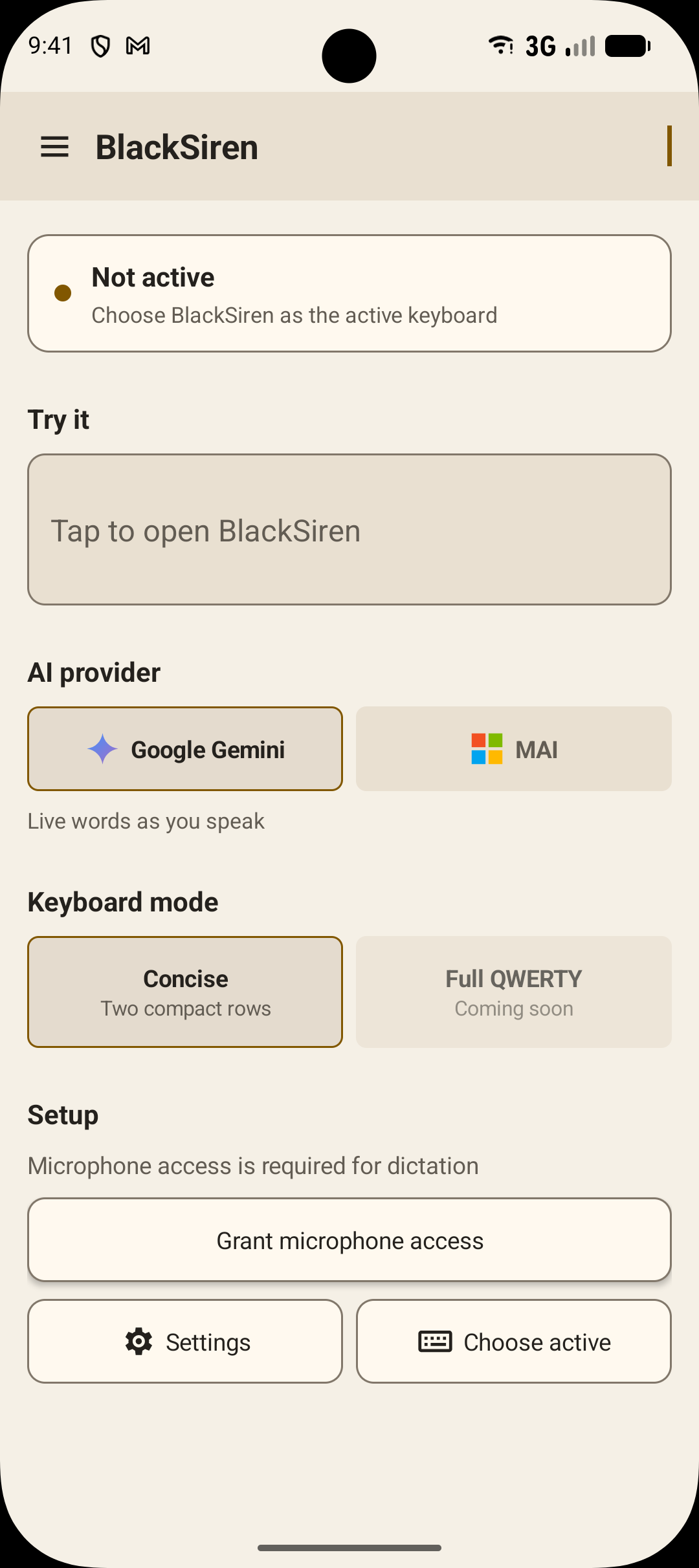
Launch BlackSiren and tap Grant microphone access under Setup. We need this to hear you, obviously, but BlackSiren won't record a thing until you give the OK.
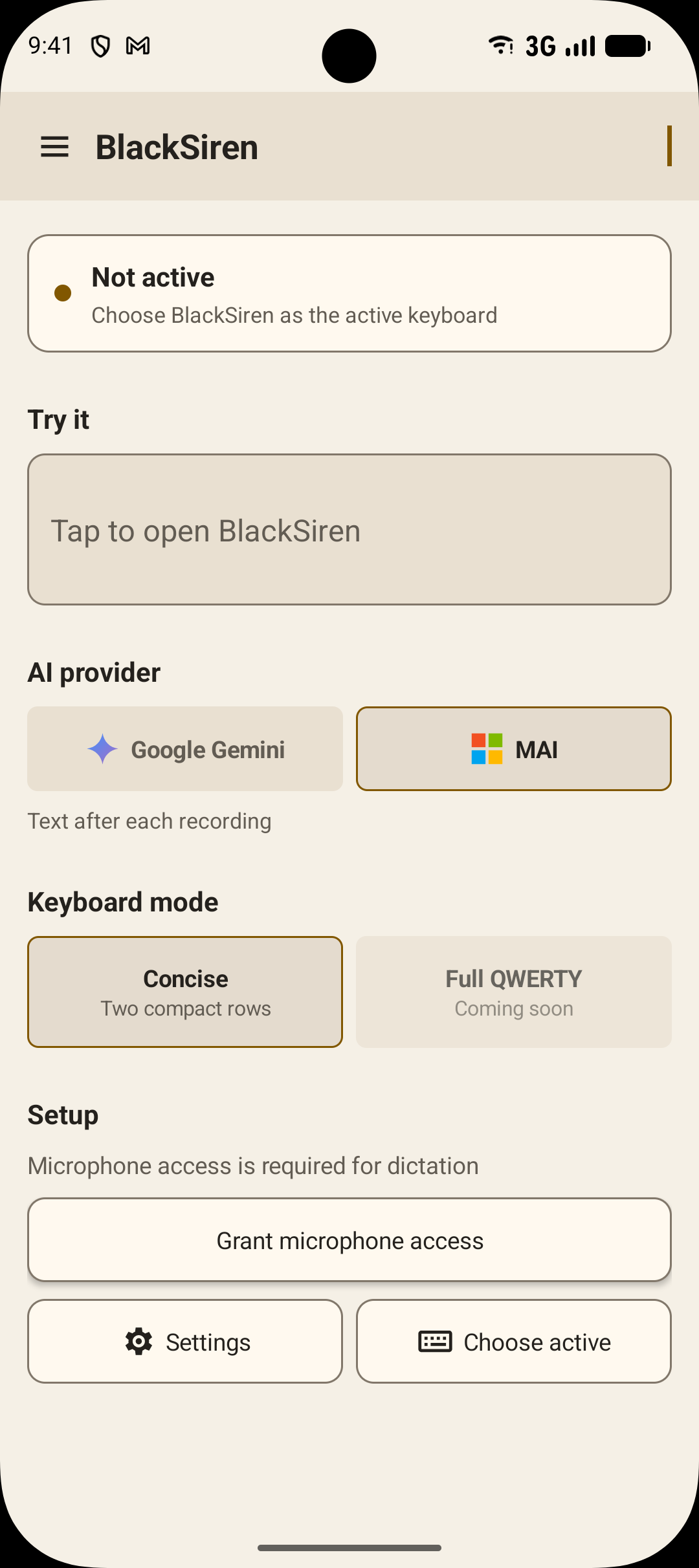
While you're there, pick your AI provider (Google Gemini for live streaming text, or MAI if you'd rather wait a beat for the full result) and your keyboard mode.
Enable BlackSiren as a keyboard
Tap Choose active from the dashboard. That drops you into Android's keyboard settings, where you'll switch BlackSiren on and set it as your active input method.
You only have to do this once. Android remembers.
Start dictating in any app
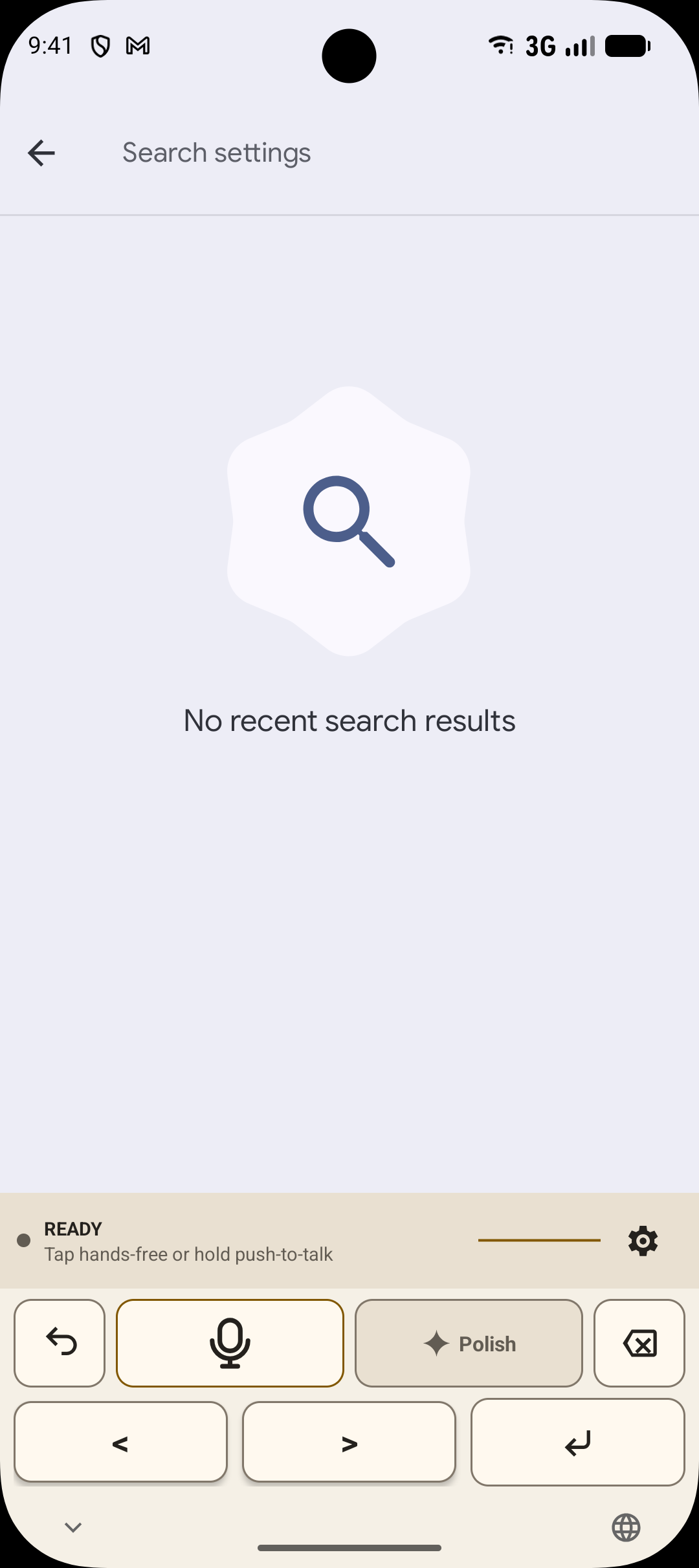
Open any text field, Messages, Gmail, Notes, wherever you'd normally type, and tap the microphone icon on the BlackSiren keyboard.
Tap once for hands-free dictation (tap again when you're done), or press and hold to talk and let go when you're finished.
Polish your text
Got a rough draft sitting there? Select the text (or just leave your cursor in the field) and tap Polish. The AI cleans up grammar, tone, and clarity so you don't have to.
Choose your appearance
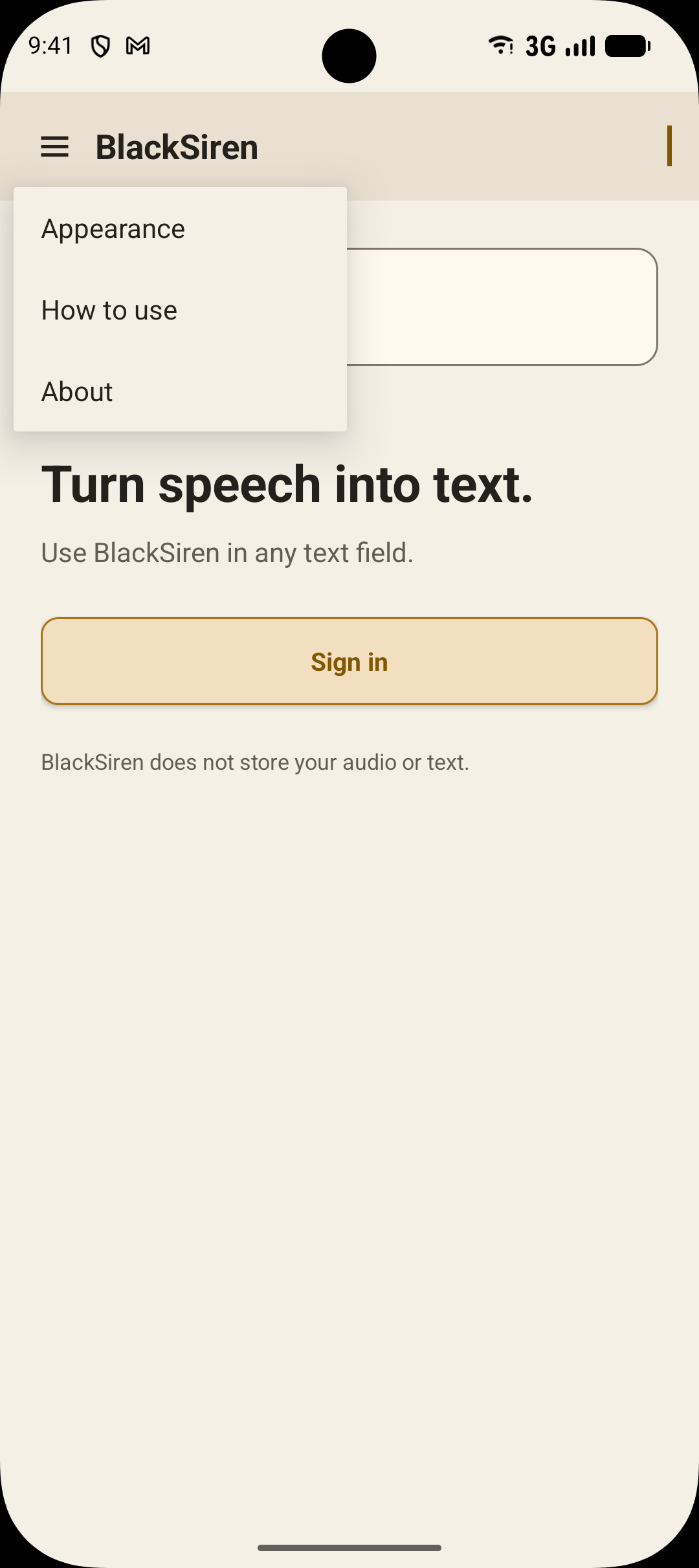
BlackSiren follows your Android system theme by default. If you'd rather it stay Light or Dark no matter what your phone is set to, open the app menu and pick Appearance.
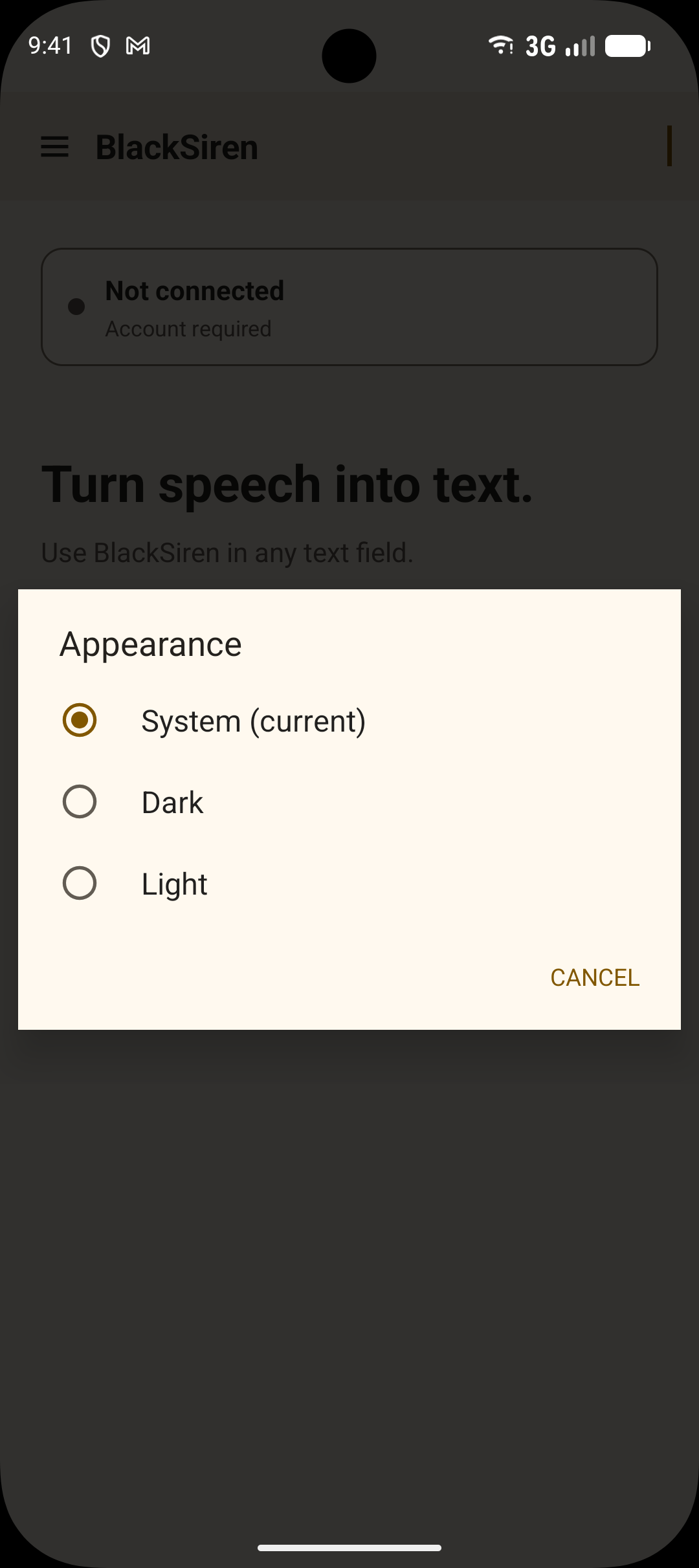
That's it, you're set up.
BlackSiren works in any app that takes text input. No special integration, no extra steps. It's just a regular Android keyboard with voice built in.